Git & GitHub: The Complete Beginner's Guide for Developers
Learn Git and GitHub from scratch. Understand version control, essential Git commands, branches, commits, pull requests, and best practices to manage your code like a professional developer.
Git & GitHub: The Complete Beginner's Guide
If you're starting your programming journey, one of the most important tools you'll ever learn is Git.
Whether you're building personal projects, contributing to open source, or working in a software company, Git is an essential skill every developer should master.
What is Git?
Git is a Distributed Version Control System (DVCS) that helps developers track changes in their code over time.
Instead of creating multiple folders like:
Project
Project Final
Project Final Updated
Project Final Really Final
Git stores every change in a structured history, allowing you to restore previous versions whenever needed.
Why Use Git?
Git provides several advantages:
Track every code change
Restore previous versions
Collaborate with teams
Create multiple development branches
Merge code safely
Prevent accidental data loss
What is GitHub?
GitHub is a cloud platform that hosts Git repositories online.
Think of it this way:
GitGitHubVersion Control ToolCloud Hosting PlatformWorks LocallyWorks OnlineTracks ChangesStores RepositoriesCommand LineWeb Interface
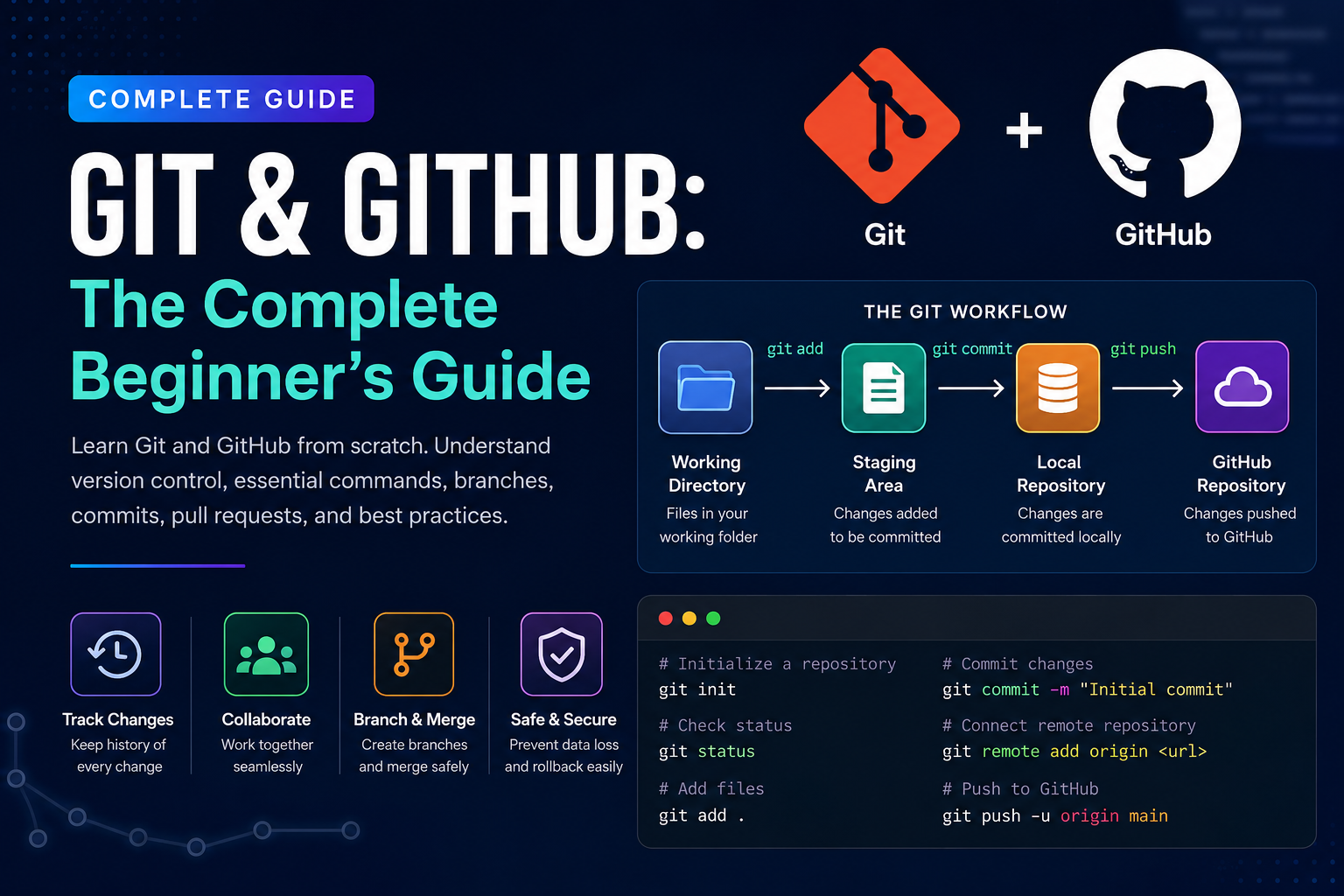
Git Workflow
The standard Git workflow looks like this:
Working Directory
        ↓
      git add
        ↓
    Staging Area
        ↓
    git commit
        ↓
 Local Repository
        ↓
    git push
        ↓
 GitHub Repository
Installing Git
Download Git from the official website:
Verify installation:
git --versionConfigure Git
Set your username and email.
git config --global user.name "Your Name"

git config --global user.email "you@example.com"
Check configuration:
git config --listInitialize a Repository
Navigate to your project folder.
git initThis creates a hidden .git folder that tracks your project.
Check Repository Status
git statusThis command shows:
Modified files
Untracked files
Files ready to commit
Add Files
Add a single file:
git add index.htmlAdd all files:
git add .Commit Changes
Create a snapshot of your project.
git commit -m "Initial project setup"A good commit message should clearly describe the changes made.
View Commit History
git logShort version:
git log --onelineConnect GitHub Repository
git remote add origin https://github.com/username/project.gitVerify:
git remote -vPush Code
First push:
git branch -M main

git push -u origin main
Later pushes:
git pushClone Repository
git clone https://github.com/username/project.gitPull Latest Changes
git pull origin mainBranching
Create a branch:
git branch feature-loginSwitch:
git checkout feature-loginOr
git switch feature-loginCreate and switch:
git checkout -b feature-loginMerge Branch
Switch to main:
git checkout mainMerge:
git merge feature-loginIgnore Files
Create a .gitignore file.
Example:
node_modules/

.env

dist/

*.log
These files won't be tracked by Git.
Undo Changes
Discard local changes:
git restore filenameUnstage files:
git restore --staged filenameReset last commit:
git reset --soft HEAD~1Essential Git Commands
git init

git status

git add .

git commit -m "message"

git log

git branch

git checkout

git switch

git merge

git clone

git pull

git push

git remote -v

git restore

git stash
Best Practices
Commit frequently
Write meaningful commit messages
Use feature branches
Keep repositories organized
Pull before pushing
Never commit passwords or API keys
Use.gitignorefor sensitive files
Comments (2)
great work
very good muhh