Git & GitHub: The Complete Beginner-to-Pro Guide
A practical, no-fluff guide to understanding version control, mastering Git commands, and collaborating like a professional developer on GitHub.
Git & GitHub: The Complete Beginner-to-Pro Guide
A practical, no-fluff guide to understanding version control, mastering Git commands, and collaborating like a professional developer on GitHub.
Introduction: Why Every Developer Needs Version Control
Imagine writing a 10,000-word document with no "undo" button and no way to see what changed between drafts. That's what coding without version control feels like. One wrong edit, one accidental delete, and hours of work can vanish.
This is exactly the problem Git was built to solve — and GitHub took it a step further by turning version control into a collaborative, social experience for millions of developers worldwide.
In this guide, you'll learn:
What Git and GitHub actually are (and how they're different)
The core concepts every developer must understand
How to use Git from the command line, step by step
How branching and merging work
How to collaborate with others using GitHub
Best practices used by professional teams
A quick-reference cheat sheet
Let's dive in.
1. What is Git?
Git is a distributed version control system (DVCS) created by Linus Torvalds in 2005 (yes, the same person who created Linux). It tracks changes to files over time, so you can:
See the complete history of every change made to your project
Revert to a previous version if something breaks
Work on new features without affecting the main codebase
Collaborate with multiple people on the same project without overwriting each other's work
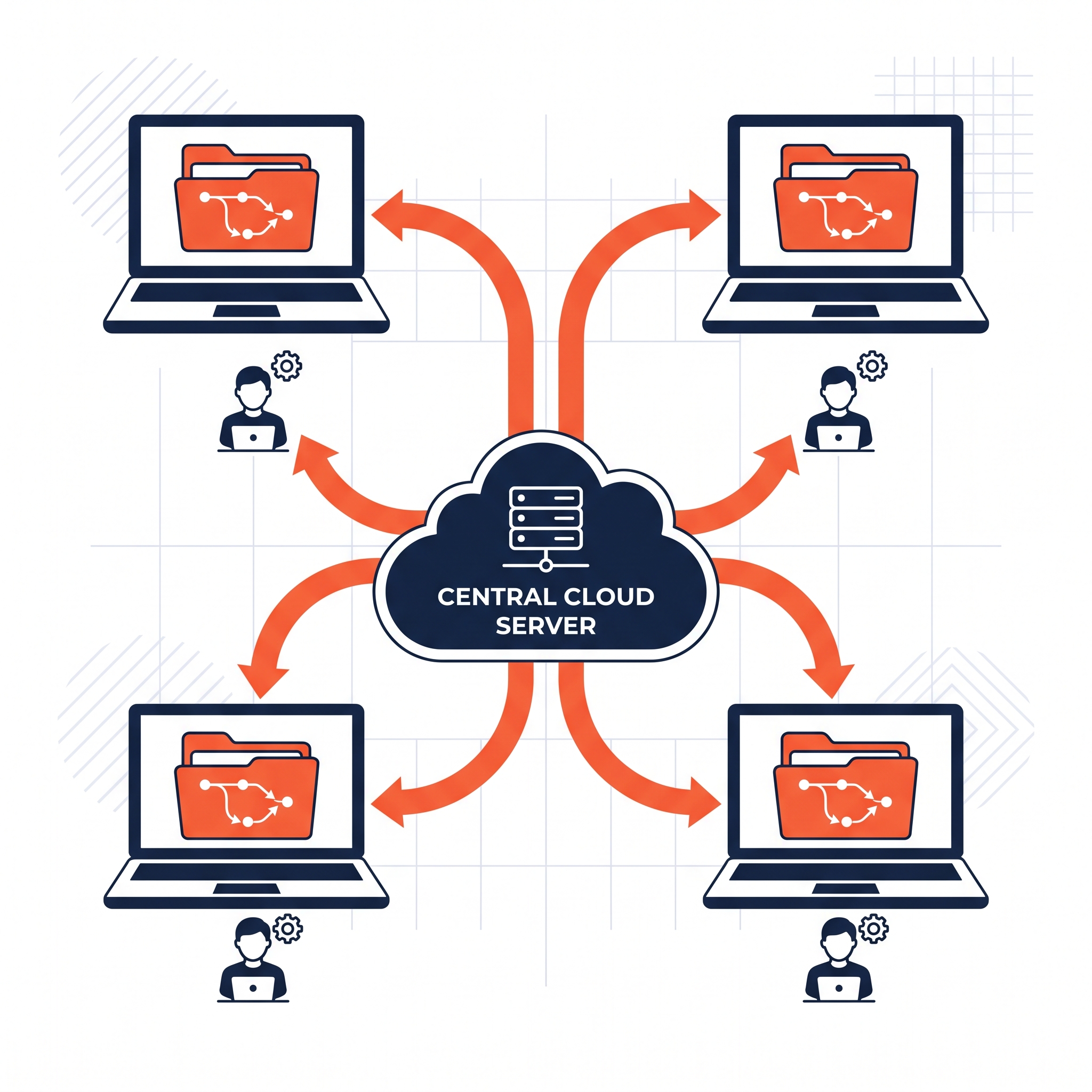
The key word here is distributed — every developer has a full copy of the project's history on their own machine, not just a snapshot. This makes Git fast, resilient, and usable even without an internet connection.
2. What is GitHub? (And How is it Different from Git?)
This is the single most confused topic for beginners, so let's clear it up immediately:
Git GitHub What it is A version control tool (software) A cloud platform that hosts Git repositories Runs where Locally on your machine On the web (github.com) Purpose Tracks changes, manages history Enables collaboration, code hosting, and social coding Alternatives Mercurial, SVN GitLab, Bitbucket
In short: Git is the engine. GitHub is the garage where you park, share, and showcase your car.
You can use Git entirely without GitHub (just on your local machine). But GitHub adds:
Cloud backup of your repositories
Collaboration tools (pull requests, issues, code review)
Project management (boards, milestones)
A public portfolio for developers
CI/CD integration (GitHub Actions)
3. Core Git Concepts You Must Know
Before touching the terminal, understand these five building blocks:
Repository (Repo)
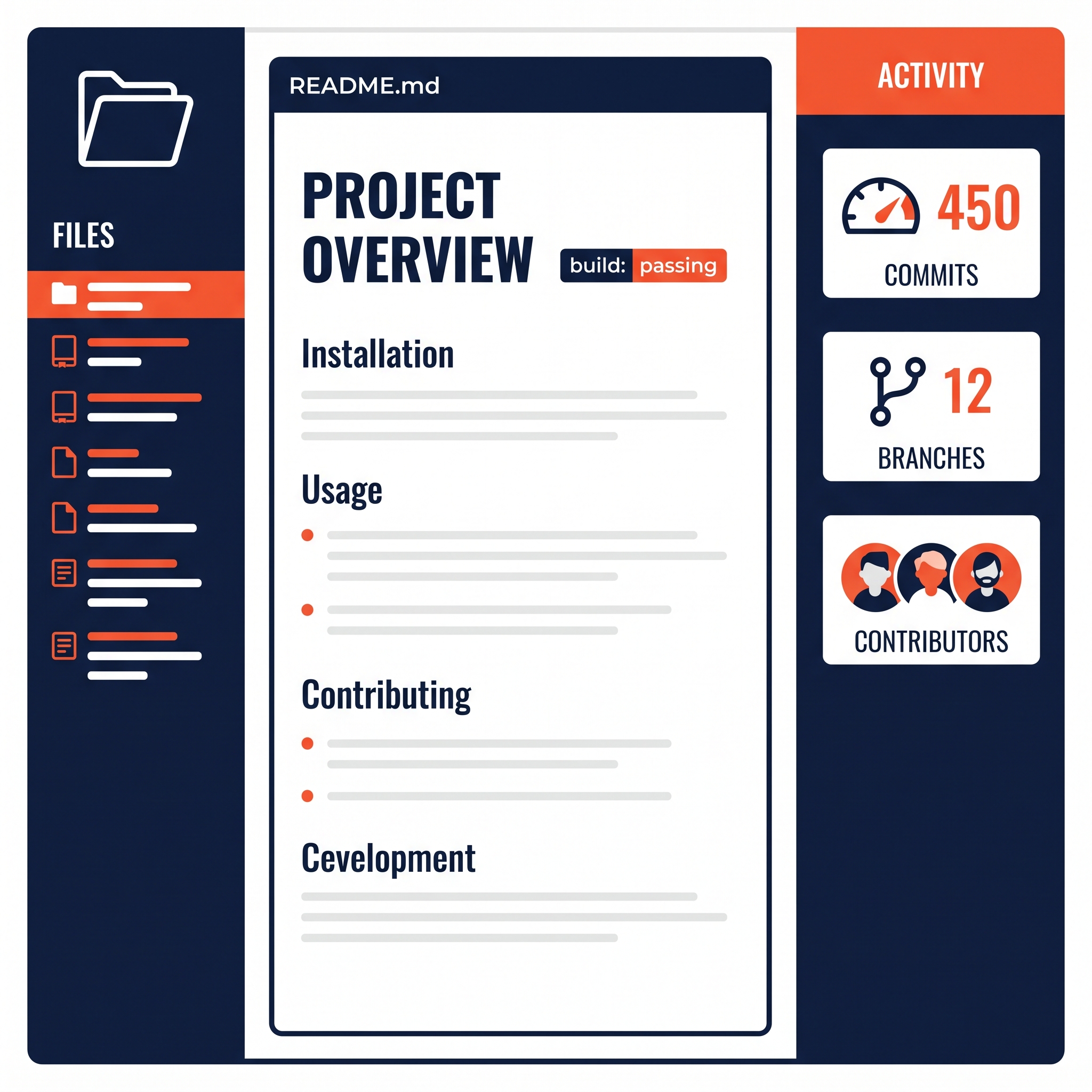
A folder tracked by Git — contains your project files plus a hidden .git folder storing the entire history.
Commit
A snapshot of your project at a specific point in time. Think of it as a "save point" with a message describing what changed.
Staging Area
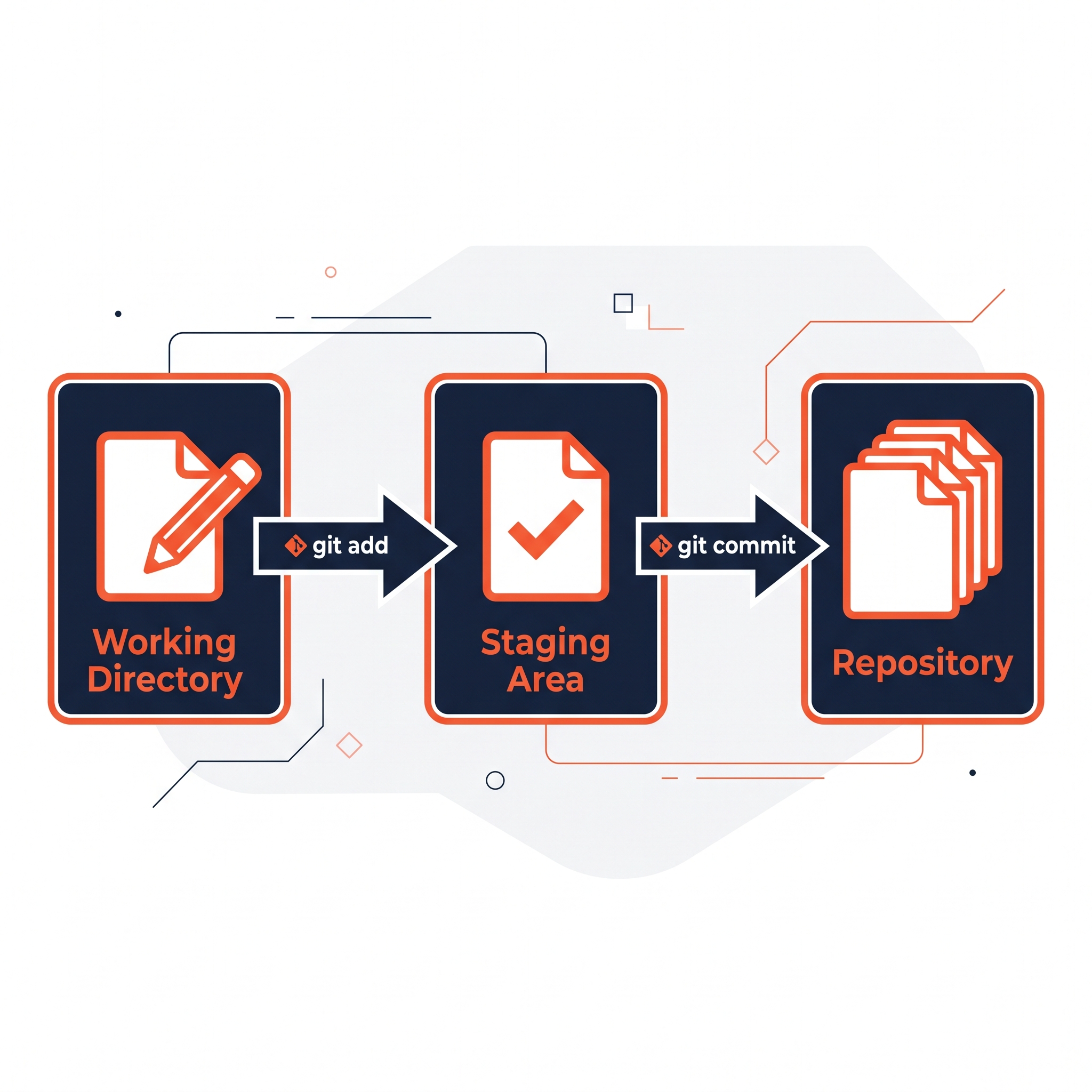
A middle zone where you prepare changes before committing them. This lets you choose exactly what goes into each commit.
Branch
An independent line of development. The default branch is usually called main. Developers create new branches to build features without disturbing the main code.
Merge
The process of combining changes from one branch into another.
4. Installing and Setting Up Git
Download Git from git-scm.com and install it for your OS (Windows/Mac/Linux).
Once installed, configure your identity (this gets attached to every commit you make):
git config --global user.name "Your Name"
git config --global user.email "your.email@example.com"
Verify installation:
git --version
5. The Basic Git Workflow
Here's the day-to-day cycle every developer follows:
# 1. Initialize a new Git repository
git init

# 2. Check the current status of your files
git status

# 3. Add files to the staging area
git add filename.txt
git add .              # adds everything

# 4. Commit the staged changes with a message
git commit -m "Add initial project files"

# 5. View commit history
git log
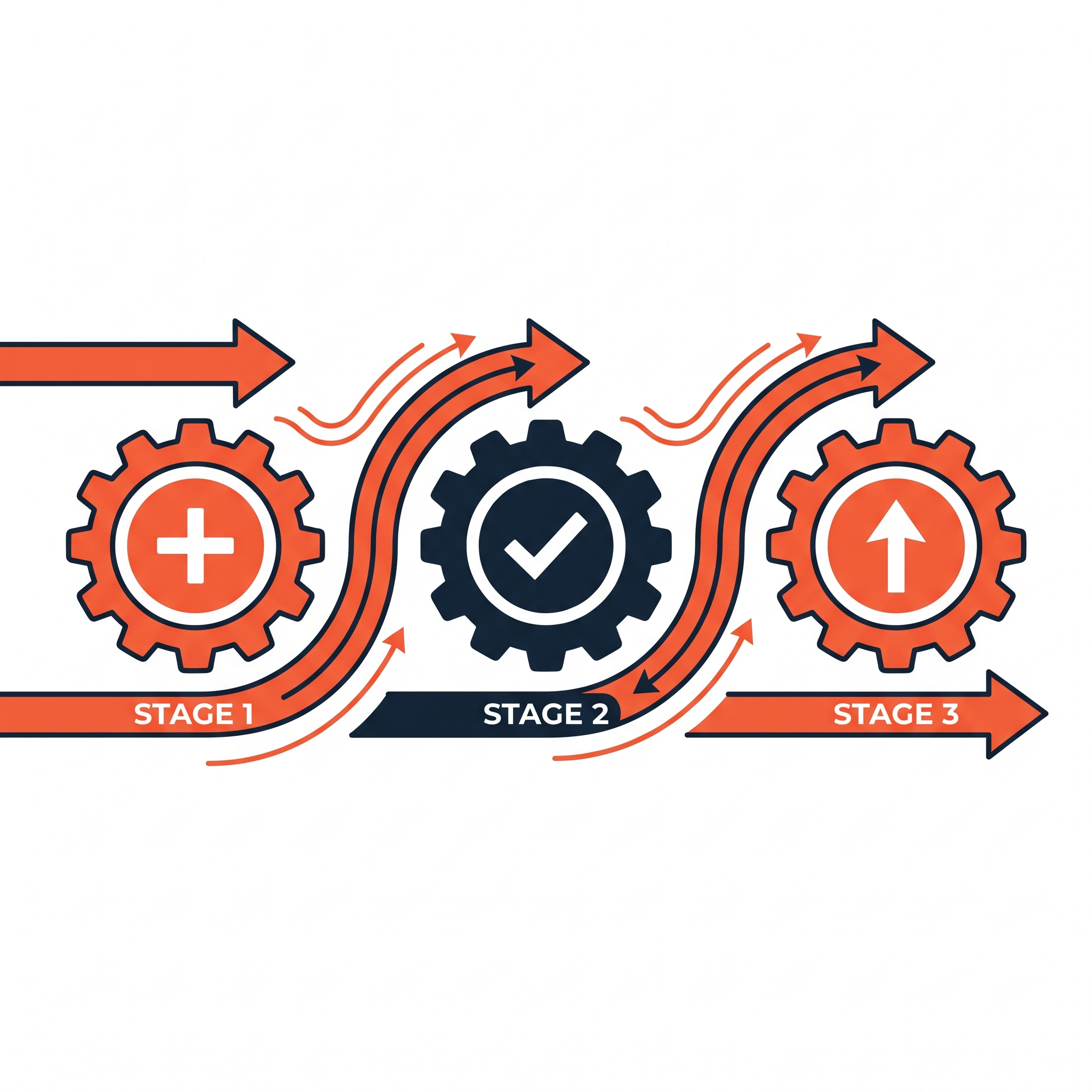
The Flow, Visually
Working Directory --git add--> Staging Area --git commit--> Repository (local)
6. Branching and Merging: Git's Superpower
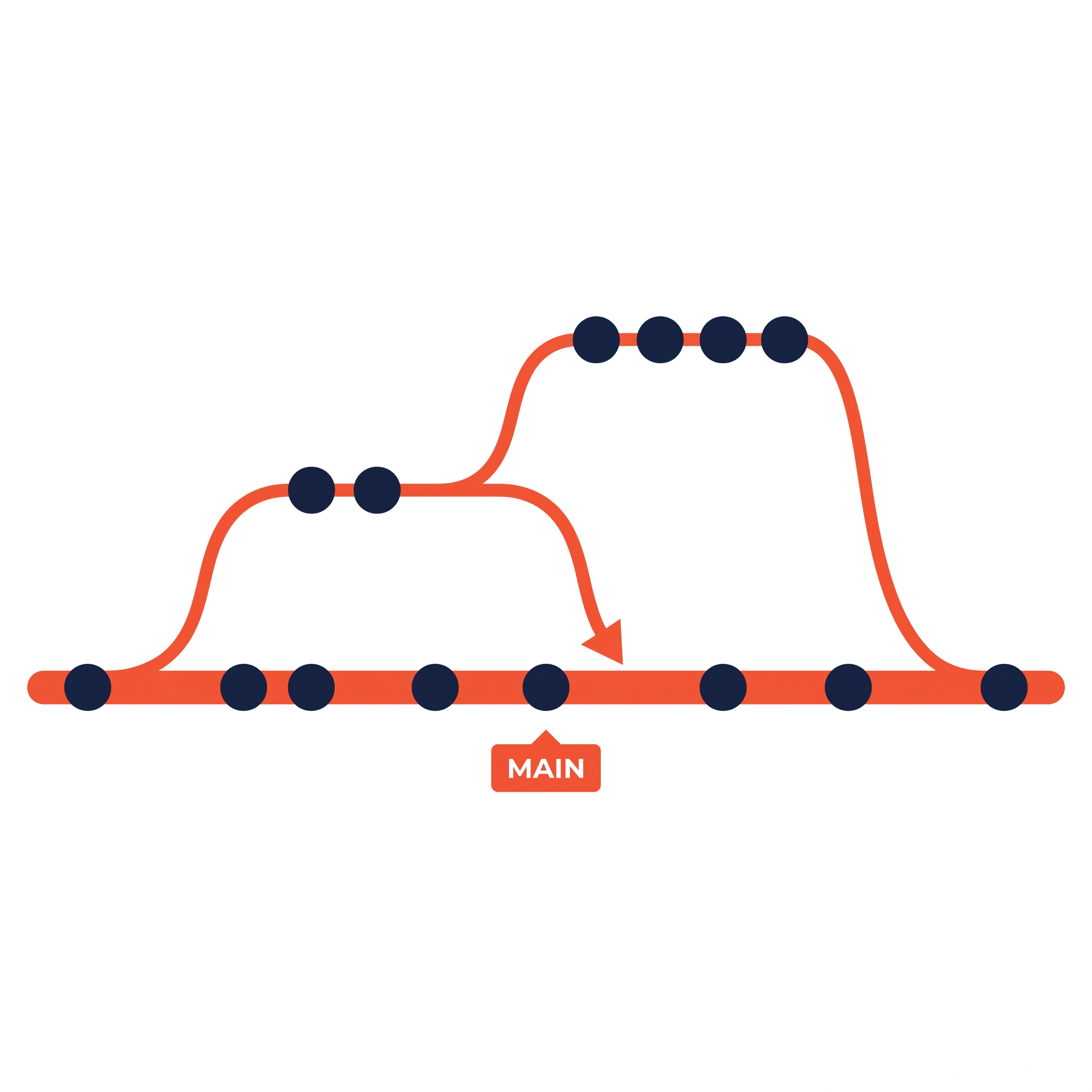
Branches let teams work in parallel without stepping on each other's toes.
# Create a new branch
git branch feature-login

# Switch to that branch
git checkout feature-login

# Or do both in one step
git checkout -b feature-login

# Work, then commit as usual
git add .
git commit -m "Add login functionality"

# Switch back to main
git checkout main

# Merge the feature branch into main
git merge feature-login
Why Branching Matters
Without branches, every change goes directly into the main codebase — risky for teams. With branches, you can:
Build a feature in isolation
Test it thoroughly
Merge it only when it's ready
Delete the branch afterward without losing history
7. Working with GitHub: Taking Git to the Cloud
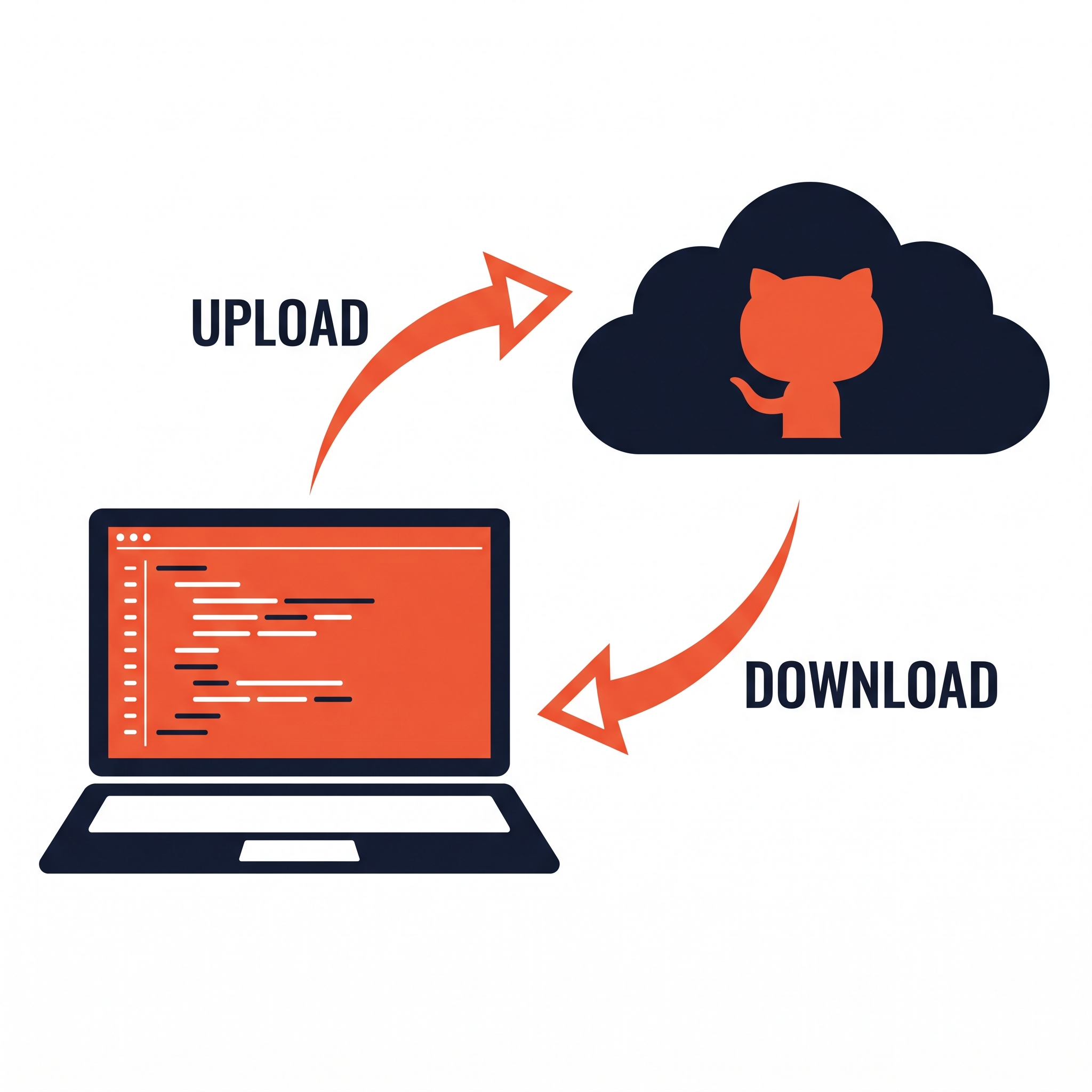
Once your project is ready to share or back up, GitHub comes in.
Connecting a Local Repo to GitHub
# Add the GitHub repo as a remote
git remote add origin https://github.com/username/repo-name.git

# Push your local commits to GitHub
git push -u origin main
Cloning an Existing Repository
git clone https://github.com/username/repo-name.git
Keeping Your Local Copy Updated
git pull origin main
8. Collaborating on GitHub Like a Pro
This is where GitHub truly shines over plain Git.
Forking
Create your own copy of someone else's repository, so you can experiment freely without affecting the original.
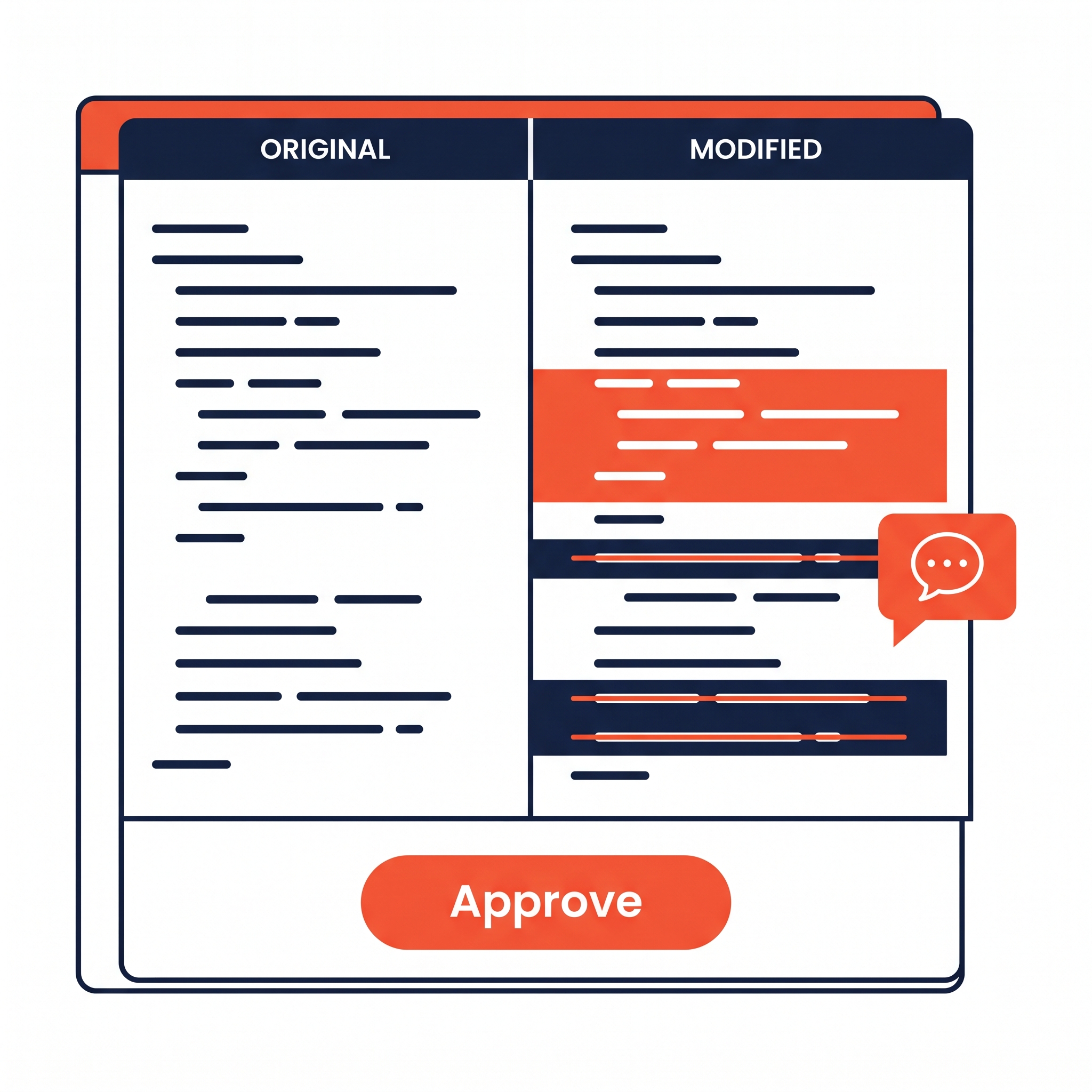
Pull Requests (PRs)
Once you've made changes on your fork or branch, a pull request lets you propose merging those changes into the original codebase. Teammates can review, comment, and approve before merging.
Issues
GitHub's built-in bug tracker and task list — used to report bugs, request features, or plan work.
Code Review
Reviewers can comment directly on specific lines of code within a pull request, request changes, or approve it for merging.
A Typical Collaboration Workflow
Fork the repository
Clone your fork locally
Create a new branch
Make changes and commit
Push the branch to your fork
Open a pull request
Address review comments
Get it merged
9. Git Best Practices for Professionals
Write clear commit messages:
"Fix null pointer exception in user login"beats"fixed bug".Commit often, in small chunks — easier to track and revert if needed.
Use a
.gitignorefile to exclude files likenode_modules/,.env, and build artifacts.Never commit secrets or API keys — use environment variables instead.
Follow a branching strategy like Git Flow or GitHub Flow for team consistency.
Pull before you push to avoid unnecessary merge conflicts.
Review before merging — don't skip code review, even on personal projects.
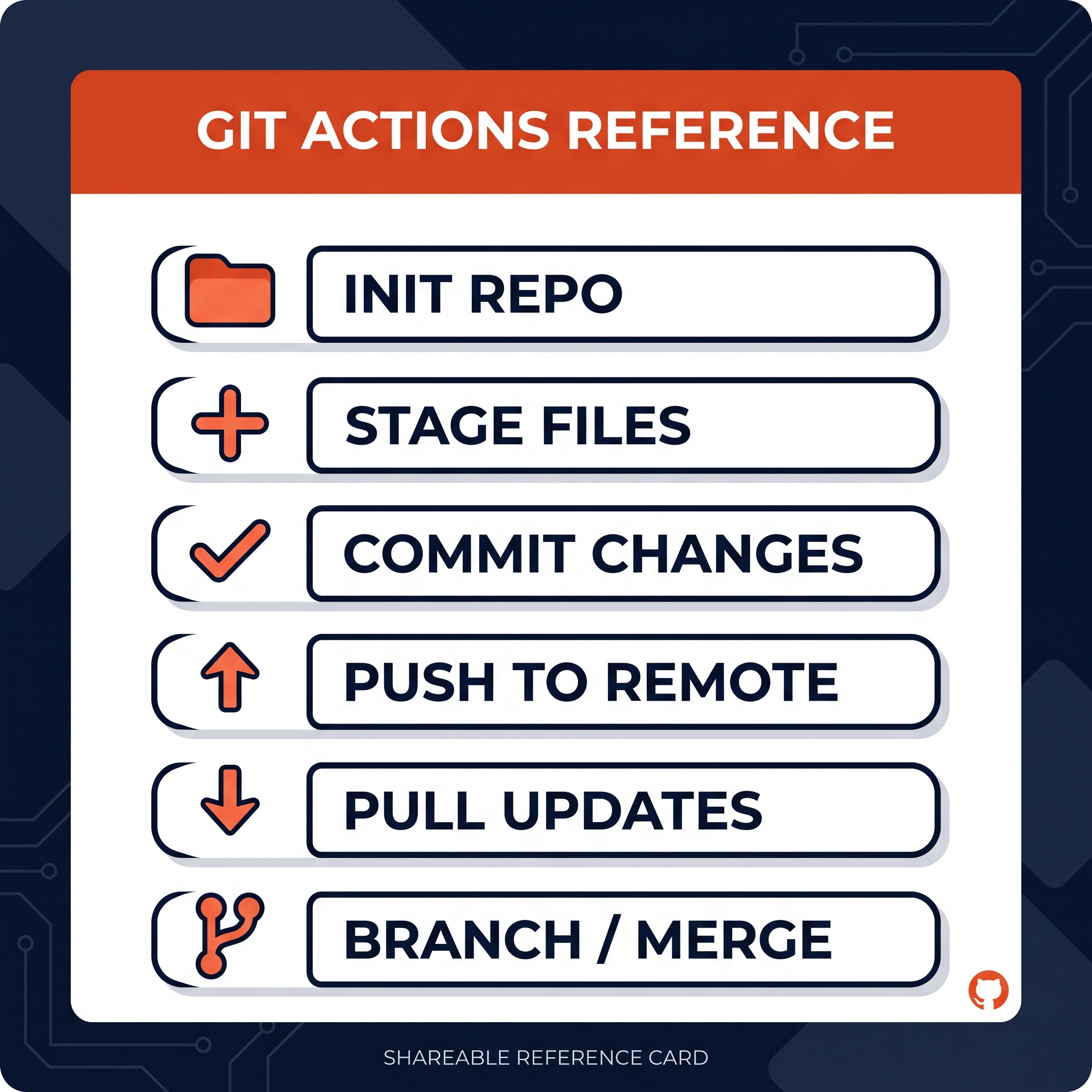
10. Quick Reference: Git Commands Cheat Sheet
Command Purpose git init Initialize a new repository git clone <url> Copy a remote repo locally git status Show changed/staged files git add <file> Stage a file for commit git commit -m "message" Save staged changes git push Upload commits to remote git pull Download and merge remote changes git branch List branches git checkout -b <name> Create and switch to a new branch git merge <branch> Merge a branch into current branch git log View commit history git diff Show unstaged changes git stash Temporarily save uncommitted changes
Conclusion
Git and GitHub together form the backbone of modern software development. Git gives you control and confidence over your code's history; GitHub turns that into a collaborative, shareable, and professional workflow.
Whether you're a solo developer backing up personal projects or part of a large engineering team shipping production code, mastering these tools isn't optional — it's foundational.
Next steps: Create a free GitHub account, initialize your first repo, and make your first commit today. The best way to learn Git is by using it.
Found this guide helpful? Share it with a fellow developer who's still emailing zip files back and forth.
Comments (0)
No comments yet. Be the first to share your thoughts!